
Creating Images and Videos with Qwen 3.5
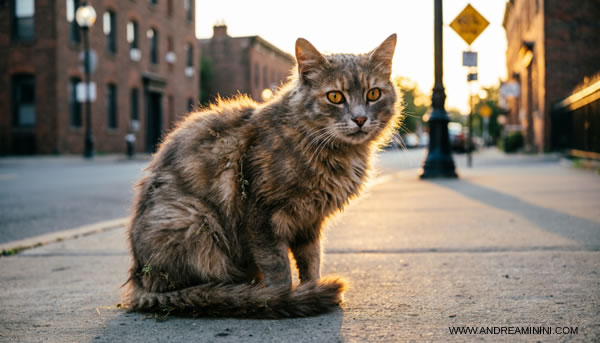
Qwen 3.5 is an AI model that can generate images and videos from text descriptions and input images. In practice, you describe what you want to see and the system creates it. If you upload an image, it can also animate it. At the moment, it is available for free within certain usage limits. I tested it myself and, in just a few minutes, I obtained a solid and visually coherent result. Here is the final output.
Let's go step by step and see how the process works.
How image generation works
The first phase consists of turning a text description into an image.
After logging into the platform, you access the image generation tool. This is where the prompt comes in, the description that guides the model.
Select the "Create Image" option, choose the image format, for example 16:9, and then enter your prompt.
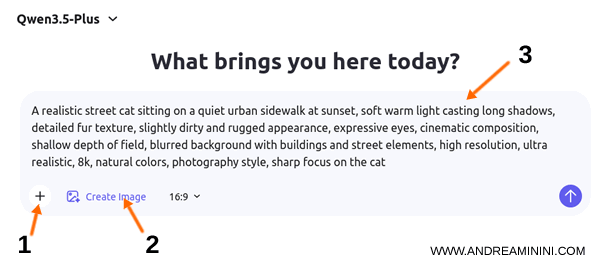
The key idea is simple: the AI does not guess, it interprets what you write. A vague prompt leads to a generic result. A precise prompt produces a much more controlled and coherent image.
For example, if you write
> “a cat”
you will get a generic image of a cat.
If instead you write:
> “A realistic street cat walking on a sidewalk, natural lighting, cinematic style, high detail, 4k”
In this case, you specify the subject, the environment, the visual style, and the quality. As a result, the output becomes far more predictable and consistent.
Within a few seconds, the system generates the image.
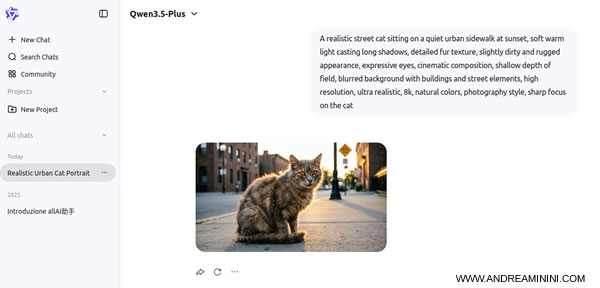
The result is already strong in terms of visual quality and coherence.
From image to video
Once the image is ready, the next step is to animate it and turn it into a video.
Hover over the image and select "Create Video". You can also edit the image before animating it if needed.
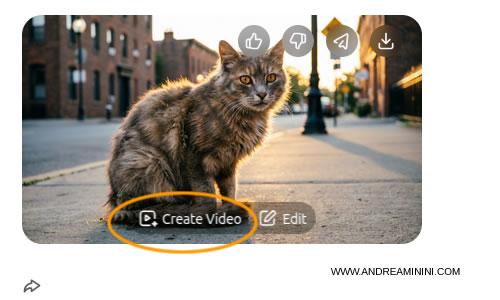
You can upload any image from your computer, it does not have to be generated with Qwen. It is also possible to create a video without specifying a starting image. In all cases, you use the "Create Video" option.
At this stage, the logic changes. You are no longer defining what the image is, you are defining how it behaves over time.
In the animation prompt, you describe the motion. You also specify what must remain unchanged, how stable the scene should be, and what kind of movement is expected. This is essential to avoid inconsistencies.
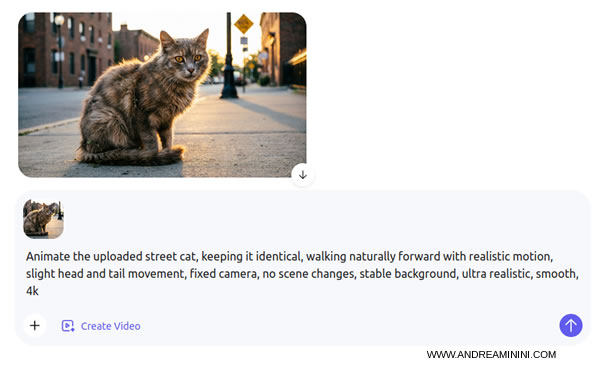
Here is a practical example of an animation prompt:
> Animate the uploaded street cat, keeping it identical, walking naturally forward with realistic motion, slight head and tail movement, fixed camera, no scene changes, stable background, ultra realistic, smooth, 4k
This prompt works well because it introduces clear constraints:
- “keeping it identical” ensures the subject does not change
- “fixed camera” keeps the framing stable
- “no scene changes” avoids unwanted transformations
- “realistic motion” guides the animation style
The model does not create freely in a human sense. It follows instructions. The more precise your instructions, the more stable and coherent the result will be.
After a few minutes, the system generates a short video where the subject moves while preserving its original appearance.
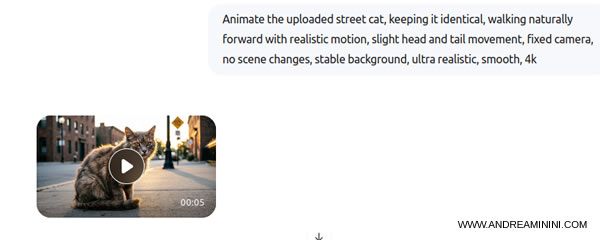
You can preview the result and download it to your computer.
The output is clearly acceptable. The cat's movement is smooth enough and visually convincing.
The system performs best with simple scenes and controlled motion. If you try to combine multiple subjects, scene changes, and complex actions, the quality tends to degrade.
For example, asking for "a cat walking" produces a stable and realistic result. Asking for "a cat jumping, running, and changing environments" increases the likelihood of visual errors.
In summary, Qwen 3.5 follows a clear two-step logic. First, define the image, its visual identity. Then define the motion, how it evolves over time. When both phases are well controlled, the results are coherent and realistic.
Andrea Minini
03/25/2026


